BIM Models
Management of BIM federations and models. Upload models by discipline, federate them, and visualize in the integrated Autodesk 3D viewer.
What is it?
Management of BIM federations and models. Allows uploading models by discipline (architecture, structure, MEP), federating multiple models into one, and visualizing them in the integrated Autodesk 3D viewer.
When to use it
To centralize the project's BIM models, coordinate between disciplines, and allow the team to access the updated 3D model from the browser without installing additional software.
Key concepts
It helps to understand three terms. A Federation is a container that groups multiple BIM models — each project can have several. A Model is an individual BIM file (IFC, RVT, NWD…) that belongs to a federation. Translation is the automatic conversion process that prepares a model so it can be displayed in the 3D viewer.
Creating a federation
When you create a federation you only need to give it a title that identifies it, such as "Coordinated Model - Phase 1". Optionally you can add a description of what the federation contains and select the disciplines included — Architecture, Structure, MEP, and so on.
Model translation
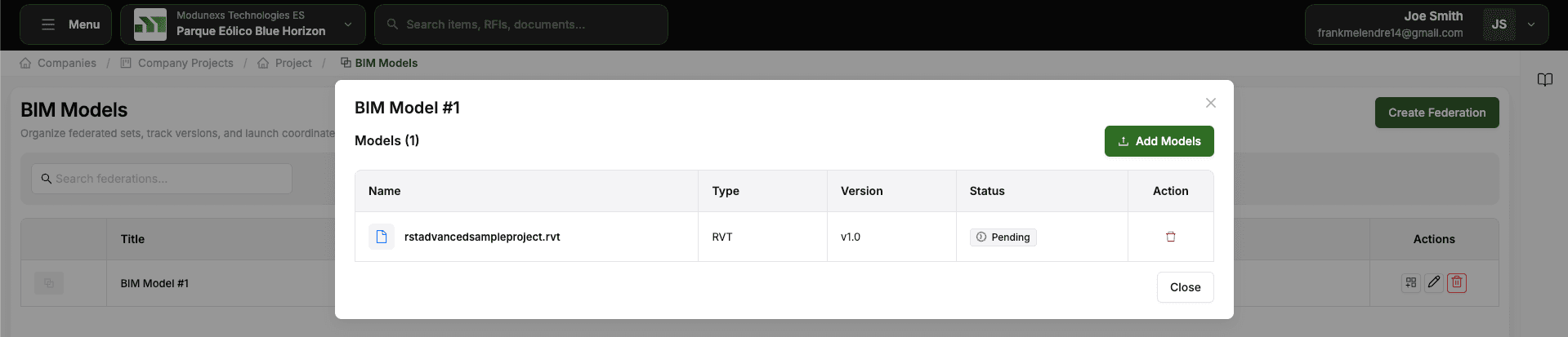
After a model is uploaded it goes through translation before it can be viewed, and you'll see its progress reflected in a status. It begins as Pending while it waits in the queue, moves to In Progress while it is being converted for the 3D viewer, and ends as Success when it is ready to view. If something goes wrong it shows Failed — check the file format and try again.
What you can do
You can create a federation to group BIM models, upload one or more BIM files into it, and manage those models by reordering them, changing their visibility, or removing them. You can also trigger or retry the automatic translation, and open the whole federation in the integrated Autodesk viewer to explore it in 3D.
How to use it
-
Go to Project Hub → BIM Models.
-
Click "New Federation". Name it and select the disciplines included.
-
Inside the federation, upload BIM files (IFC, RVT, NWD).
-
The system will start translation automatically. Wait for "Success" status.
-
Click "View in 3D" to open the model in the Autodesk viewer.